

A Proofreader’s Guide to Straight and Curly Quotes


Quotation marks may seem simple at first glance, but eagle-eyed proofreaders will know there’s more than one type to watch out for. In fact, quotation marks come in two distinct styles: straight and curly (or “smart”).
In this post, we’ll explain:
- The difference between straight and curly quotes
- How to enable or disable smart quotes in Microsoft Word
- How to change straight quotes to curly quotes (and vice versa)
- How to use Find and Replace to fix inconsistent quote styles
- When to use each style and what to watch out for as a proofreader
Let’s take a closer look.
What’s the Difference Between Straight and Curly Quotes?
The visual differences in curly quotes vs. straight quotes can be summed up easily. Straight quotes are simple vertical lines that frame a word or phrase:
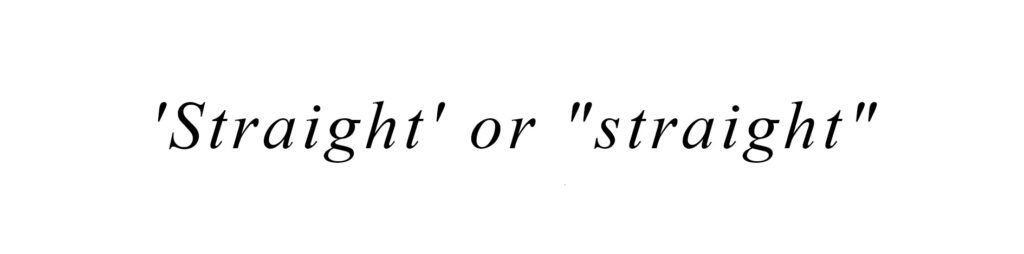
Curly quotes, meanwhile, curve to the left or right depending on whether they’re placed at the beginning or end of a word:

Functionally, both styles do the same thing (i.e., indicate the start and end of a quotation or passage of dialogue). But most publishers prefer curly quotes over straight as they’re easier to read and clearly differentiate the start and end of a quote.
A Brief History of Straight Quotes and Curly Quotes
Curly quotation marks are the older of the two, dating back to traditional print publishing. Professional typesetters used metal or wood type blocks with carefully shaped punctuation, which made curly quotes – sometimes called typographer’s quotes – the default.
Straight quotes, by contrast, were introduced with the invention of the typewriter. Space came at a premium, and the simplified vertical form took up less room and was easier to produce on mechanical keyboards.
With the rise of computers and digital typesetting, straight quotes remained the default because they were easy to encode. You’ll still see straight quotes in Word, on laptop keyboards, and on smartphones for this reason. And they’re not an obsolete adaptation either: Straight quotes are coding-friendly, while curly quotes can cause compatibility issues when used in HTML, Markdown, or programming languages.
As word processors became more sophisticated, though, “smart” quotes were introduced – features that automatically convert straight quotes into curly quotes based on context. These smart features brought curly quotes back into widespread use, especially in published or typeset work.
Today, most style guides favor curly quotes over straight quotes for their typographic clarity. But proofreaders must stay alert. Text pasted from mixed sources, code snippets, and older documents may still contain straight quotes, and part of your job is to make sure all quotation marks are styled consistently.
How to Change Straight Quotes to Curly in Word
If you’re working on a document that includes straight quotes – especially content copied from websites, plain-text files, or older documents – you may need to convert them to curly quotes manually. This is a common proofreading task, and thankfully Microsoft Word makes it easy.
To change straight quotes to curly quotes in Word:
Step 1: Turn On Smart Quotes
On Windows:
- Go to File > Options > Proofing > AutoCorrect Options
- Open the AutoFormat As You Type tab
- Mark the box labeled “Straight quotes“ with “smart quotes”
- Click OK to save your changes
On Mac:
- Go to Word > Preferences > AutoCorrect
- Open the Autoformat As You Type tab
- Mark the box labeled “Straight quotes“ with “smart quotes”
Step 2: Use Find and Replace
- Open the Replace tool from the Home tab
- In the Find what field, type a straight quote (‘ or “)
- In the Replace with field, type the same character again
- Click Replace All
Word will automatically apply curly quotes based on context (opening or closing, single or double).
After running the replacement, skim the document to double-check that all quotes (and apostrophes) have been styled correctly.
How to Change Curly Quotes to Straight in Word
Sometimes, your client may prefer plain, straight quotation marks – often for technical, coding, or formatting reasons. In that case, you’ll need to turn off Word’s smart quotes feature and manually replace curly marks with straight ones.
To change curly quotes to straight quotes in Word:
Step 1: Turn Off Smart Quotes
On Windows:
- Go to File > Options > Proofing > AutoCorrect Options
- Open the AutoFormat As You Type tab
- Uncheck the box labeled “Straight quotes“ with “smart quotes”
- Click OK to save your changes
On Mac:
- Go to Word > Preferences > AutoCorrect
- Open the Autoformat As You Type tab
- Uncheck the box labeled “Straight quotes“ with “smart quotes”
Step 2: Use Find and Replace
- Open the Replace tool from the Home tab
- In the Find what field, paste a curly quote (e.g., “ or ‘)
- In the Replace with field, type the corresponding straight quote (” or ‘)
- Click Replace All
This will replace curly quotes with straight ones throughout the document, as long as smart quotes remain disabled.
What Should Proofreaders Look Out For?
When proofreading a document, quote consistency is key. A mix of straight and curly quotation marks can easily occur, especially when content has been copied from websites, emails, or older documents.
Even with smart quotes turned on, Word doesn’t always correct pasted text automatically. That means you might see curly quotes in some places and straight ones in others.
If a style guide is provided, follow it closely. If not, edit quotes to match the dominant style used in the document and leave a comment to explain the change. Watch out for:
- Mixed quote styles (curly and straight used together)
- Incorrect apostrophes (straight quotes instead of true apostrophes)
- Single vs. double quotation mark mismatches
Using Find and Replace will help, but a final manual check is essential to catch stray marks the software might miss.
Becoming A Proofreader
Want to feel confident handling quote style, formatting, and all the little details that make a big difference? Our Becoming A Proofreader course covers everything you need to know about punctuation, grammar, formatting, and more.
And if you pass both our Becoming A Proofreader and Becoming An Editor courses with a distinction score of 80% or above, you’ll be offered guaranteed work with our partner company, Proofed. Buy them as a bundle, and you’ll save 15%!
Try some lessons for free today.






Your email address will not be published.